
So verwenden Sie Dragon Center
Dragon Center ist eine Multifunktionssoftware, die Sie auf einem MSI-Laptop verwenden können.
Es hat Spielmodus, Systemmonitor, Batteriemodus und Sie können Ihr Produkt sogar in dieser Software registrieren.
- Gaming-Modus
- Benutzerszenario
- Allgemeine Einstellung
- Monitor
- Wahre Farbe
- Umgebungslink
- Anmeldung
- Systeminformationen
- Batterie-Master
- Sichern
- Rahmen
Gaming-Modus
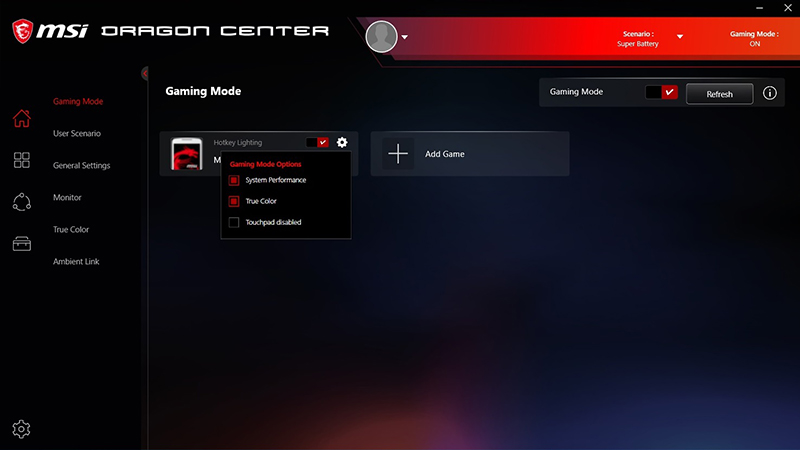
Im Gaming-Modus kann es die PC-Ausrüstung wie die Grafikkarte und das Kühlsystem optimieren, um dem Benutzer das beste Spielerlebnis zu bieten.
- Ein/Aus-Tasten für den Gaming-Modus
- Liste des Spielmodus aktualisieren
- Spiel hinzufügen
- Gaming-Modus-Optionen haben 3 Modi, Systemleistung, True Color, Touchpad deaktiviert. Sie können je nach Präferenz eine der beiden auswählen.
Benutzerszenario
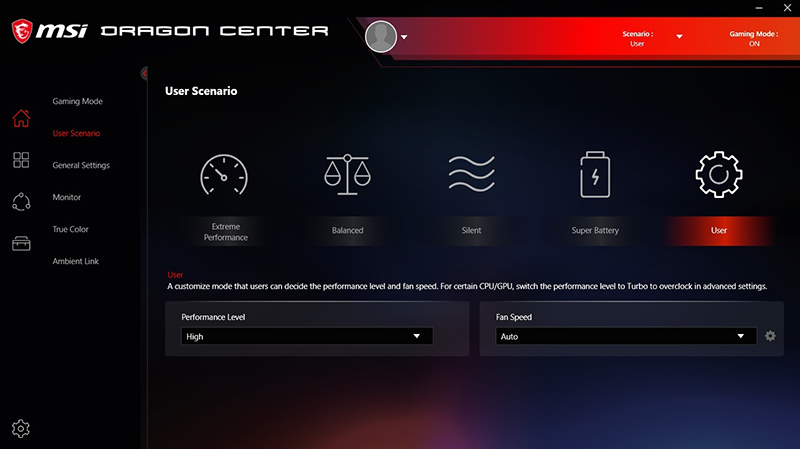
Sie können den Leistungsstatus des Laptops basierend auf Ihrer Referenz ändern.
- Extreme Leistung
- Balanced
- Silent
- Super Battery
- User
- Performance Level: Adjust the laptop’s performance.
- Fan Speed: Adjust the fan speed
General Setting
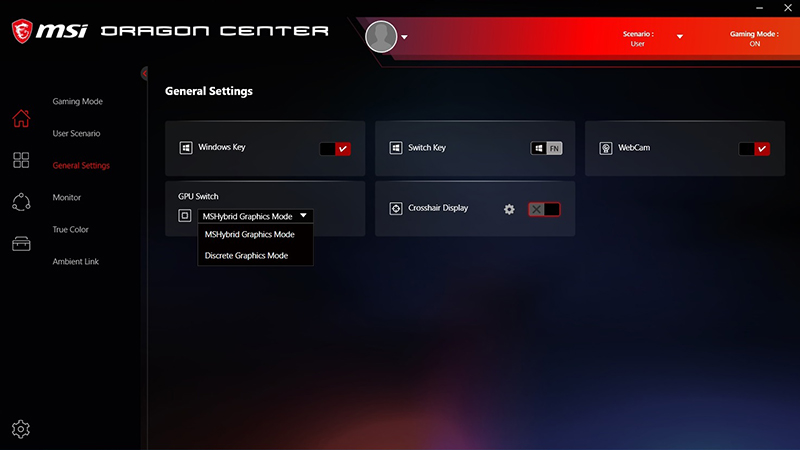
In General setting, you can enable the windows key, webcam and graphics card mode.
- You can enable/disable the windows key
- You can switch between the windows key and the Fn key.
- You can enable / disable the Webcam
- You can switch the graphics card mode.
MSHybrid: will automatically switch between the integrated GPU and the discrete GPU when required by the applications in use.
Discrete: will use the dedicated Graphics Processing Unit (GPU), which is more powerful to run GPU-based applications. - You can turn on/off the crosshair
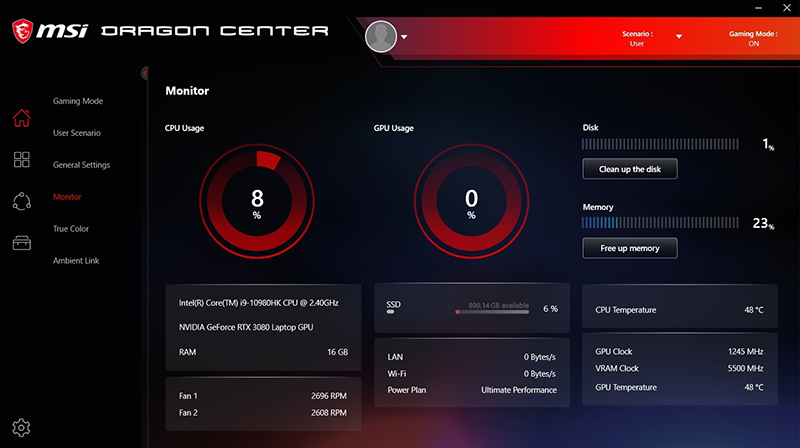
Monitor
You can check the hardware status on Monitor.
- CPU status
- GPU status
- Disk status
- Fan speed status
- Network status
- Memory status
- Laptop’s configuration for CPU & GPU and RAM
True Color
You can adjust the laptop monitor’s saturation, brightness, and contrast on True Color in order to give you the best visual experience.
- Gamer mode
- Anti Blue mode
- sRGB mode
- Office mode
- Movie mode

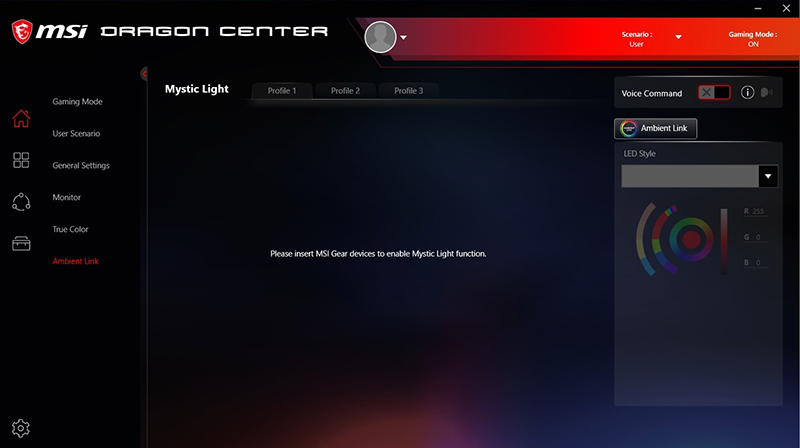
Ambient Link
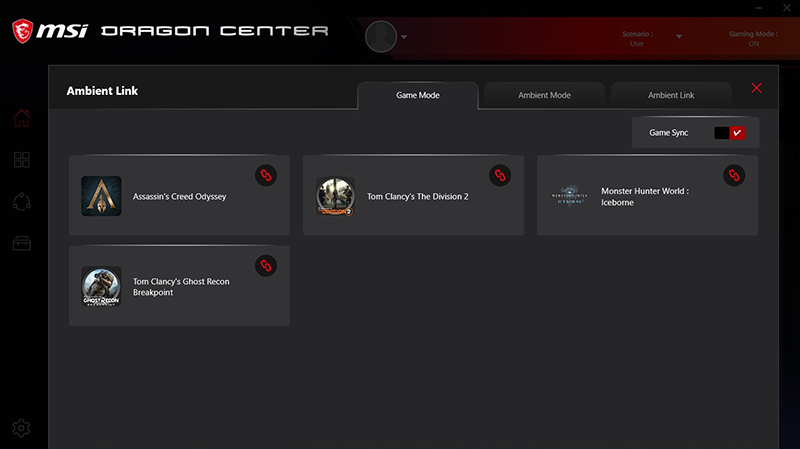
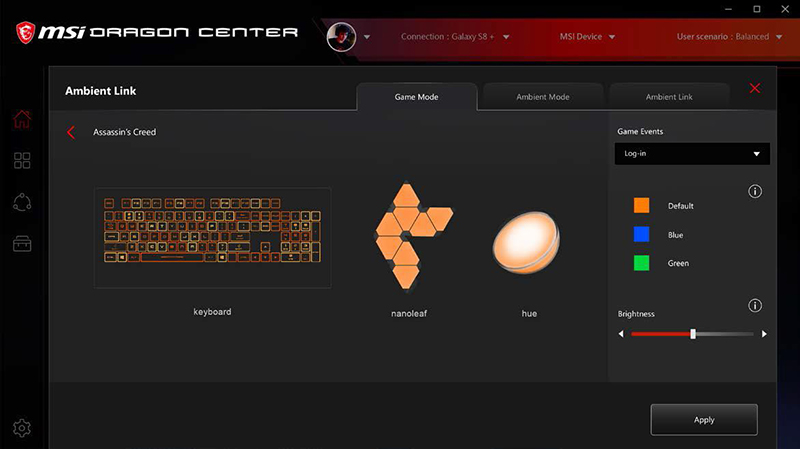
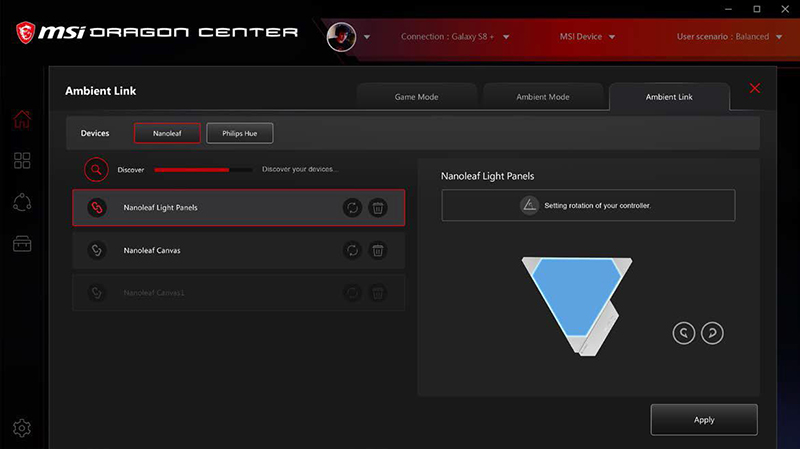
With the Ambient Link’s function, it provides the visual feedback from Philips Hue & Nanoleaf according to what the game has provided.
Right-click on the Ambient Link button and open a tab. (locate on the right side)
Game Mode
Ambient Mode:

Ambient Link:
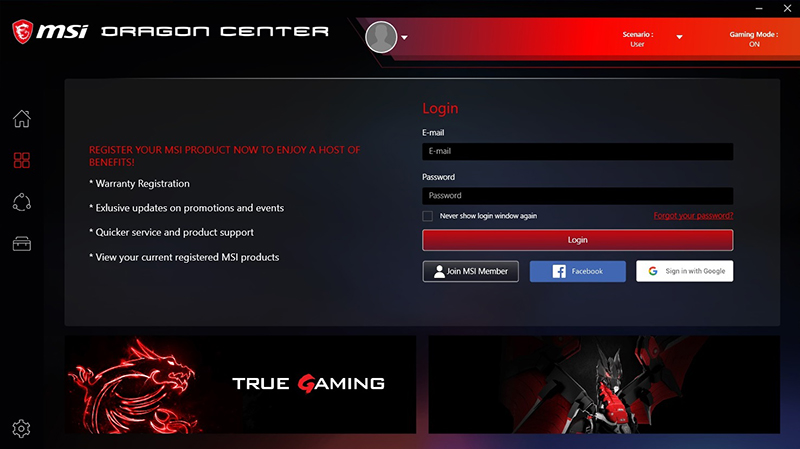
Login
You can log in to the MSI member here. If you haven’t registered to become a member of MSI, you can register from this page.
System Info
You can check the laptop’s system information, such as, BIOS, System version, Driver. You can also export the system info.

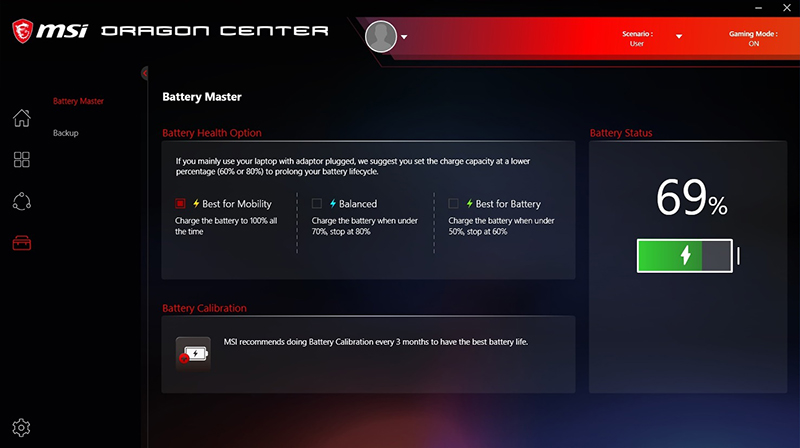
Battery Master
Sie können je nach aktuellem Bedarf einen der beiden Batteriemodi auswählen oder mit einer Batteriekalibrierung fortfahren.
- Am besten für den Mobilitätsmodus
- Ausgeglichener Modus
- Am besten für Batteriemodus
- Batteriekalibrierung
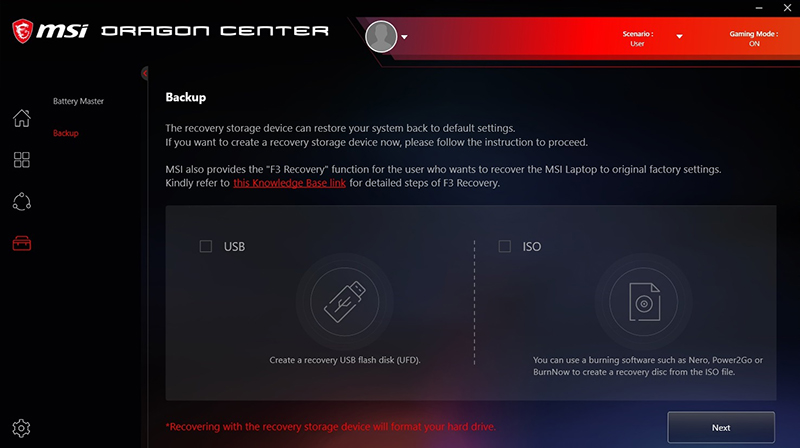
Sicherung
Sie können ein USB-Gerät oder eine Brennsoftware verwenden, um ein Wiederherstellungsspeichergerät zu erstellen, mit dem Sie das System in Zukunft wiederherstellen können.
Rahmen
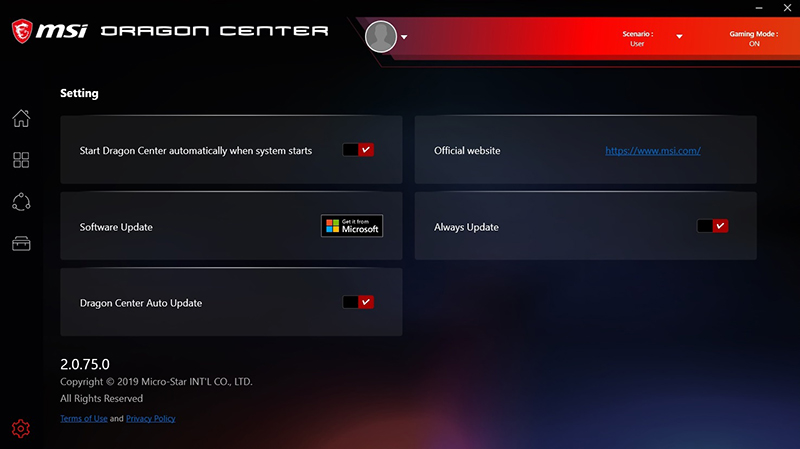
Einstellungen für Dragon Center
- Sie können entscheiden, ob Sie Dragon Center beim Systemstart automatisch starten möchten.
- Sie können zum Microsoft Store gehen, um die neueste Version des Dragon Centers zu überprüfen
- Sie können das „Immer-Update“ für Dragon Center aktivieren/deaktivieren.
- Sie können das „automatische Update“ für Dragon Center ein- und ausschalten