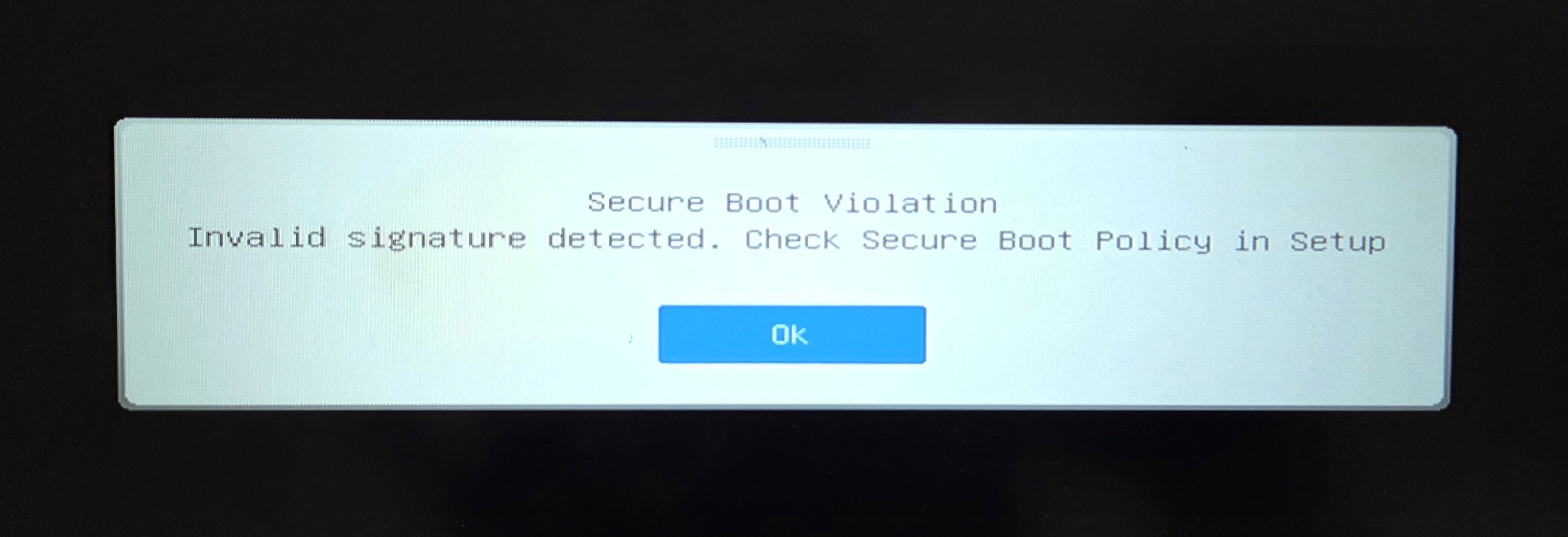
[Troubleshooting] Secure Boot Violation Error at Startup
Answer
If you encounter this error message during startup and cannot enter the system, please refer to the steps below to troubleshoot the issue:
This article applies to all MSI notebook products.
Create the Recovery Tool
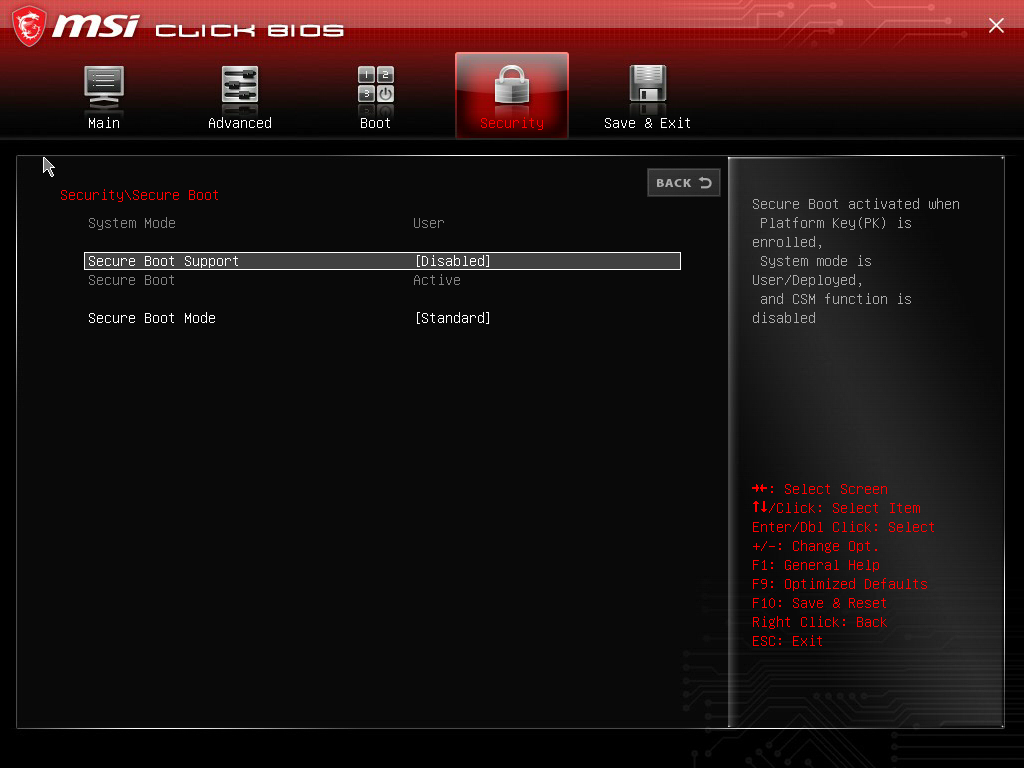
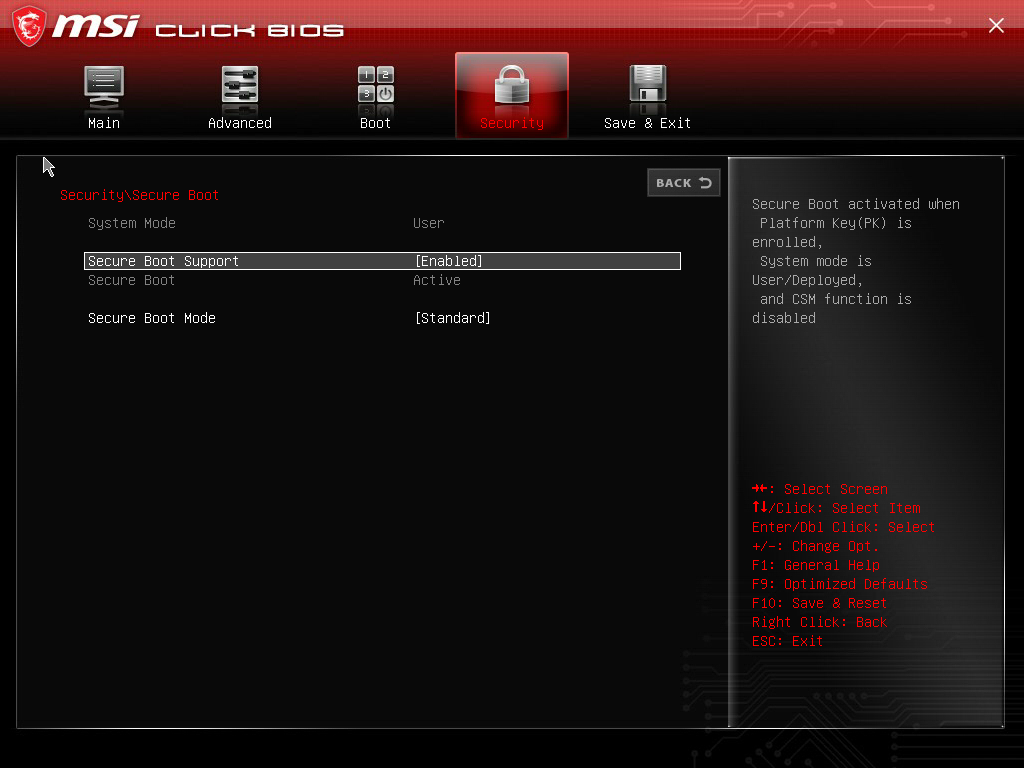
- Restart the system and press the “Delete” key when the MSI logo appears to enter BIOS. Go to “ Security ” > “ Secure Boot ” > “ Disable ”, then press “ F10 ” to save and restart the system to enter Windows
If another system is available, you may skip to step 2 and create the recovery tool on the other system
- Prepare a USB device and format it as FAT32 or NTFS.
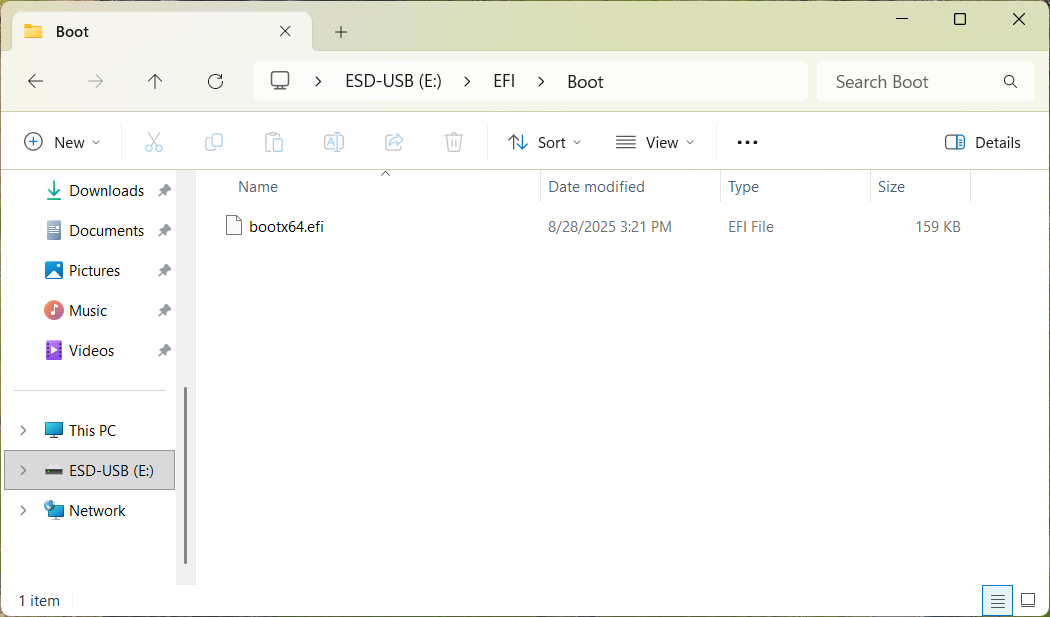
- Click link to download and extract the tool, then copy the entire “ EFI ” folder to the USB device
Use the Recovery Tool
- Connect the USB device containing the tool to the affected system, restart it, and press “ F11 ” when the MSI logo appears.
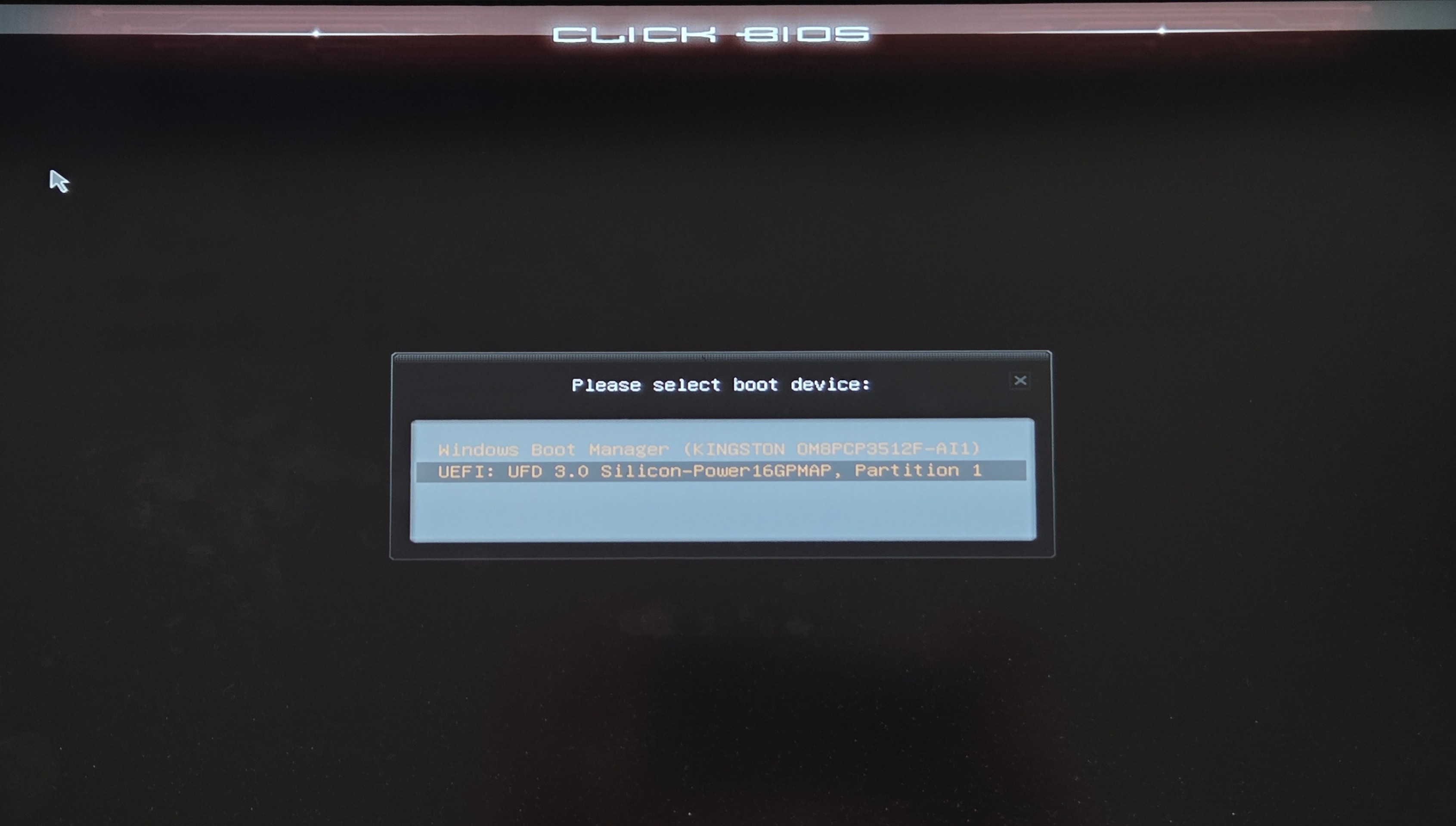
- Select the USB device. The system will restart automatically after the process is completed.
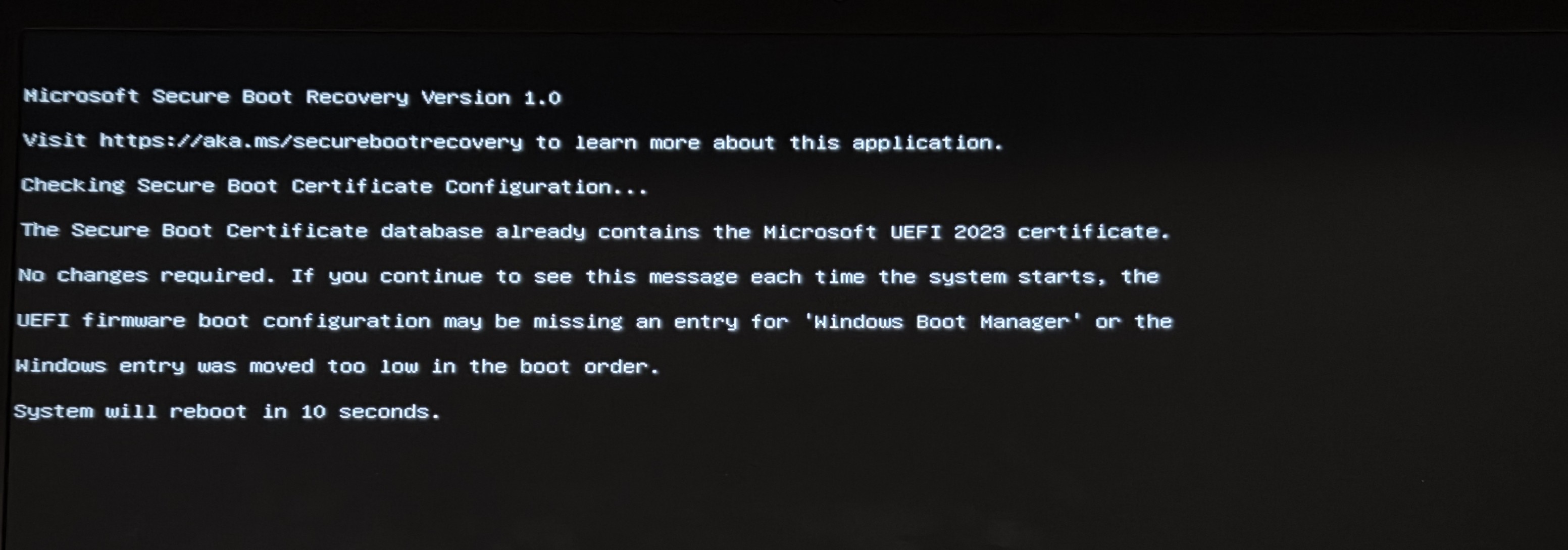
- After the system restarts, press the “Delete” key again when the MSI logo appears to enter the BIOS menu.
- Go to “ Security ” > “ Secure Boot ” > “ Enable ” to enable Secure Boot and enter the system.
If the issue persists after completing the steps above, please contact MSI online customer service for further assistance.
FAQ
Q: Can I use the USB flash drive that I normally use to copy the recovery files?
A: To ensure that the notebook can correctly read the boot files without interference during startup, we recommend using an empty USB flash drive and formatting it as FAT32 before copying the “EFI” folder to it.
Q: How to format the USB drive to FAT32 or NTFS?
A: You can format the USB drive in Windows Explore.
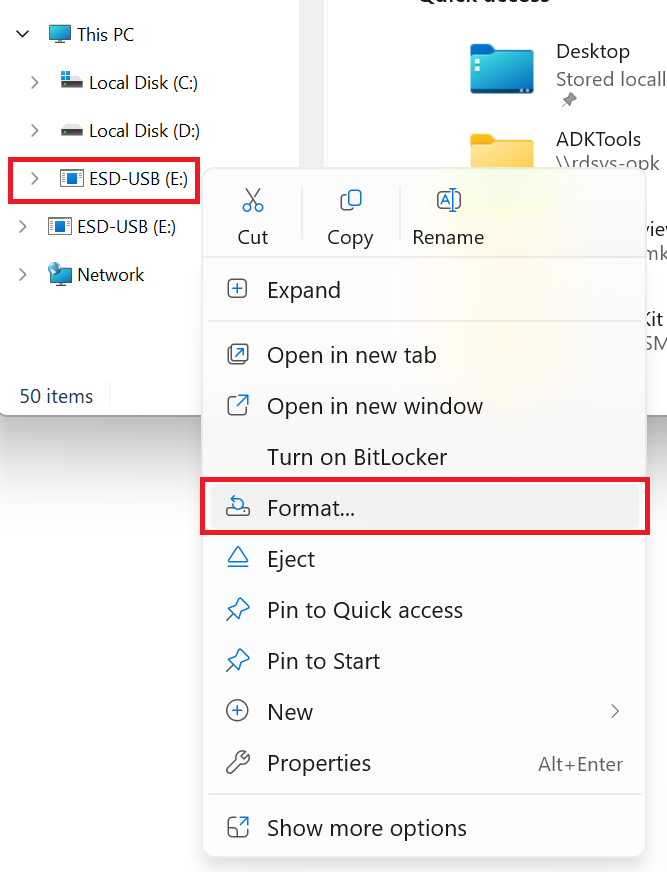
- Plug in the USB drive and open the Windows Explore.
- Right-click the USB drive and click "Format".
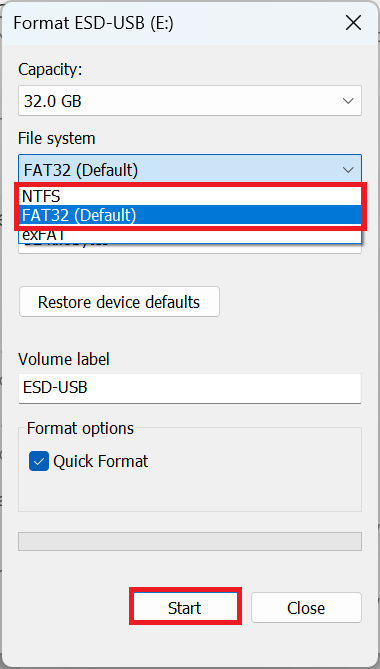
- Select the desired format and click "Start" to format.
Q: If my USB drive is over 64GB, how to format it to FAT32?
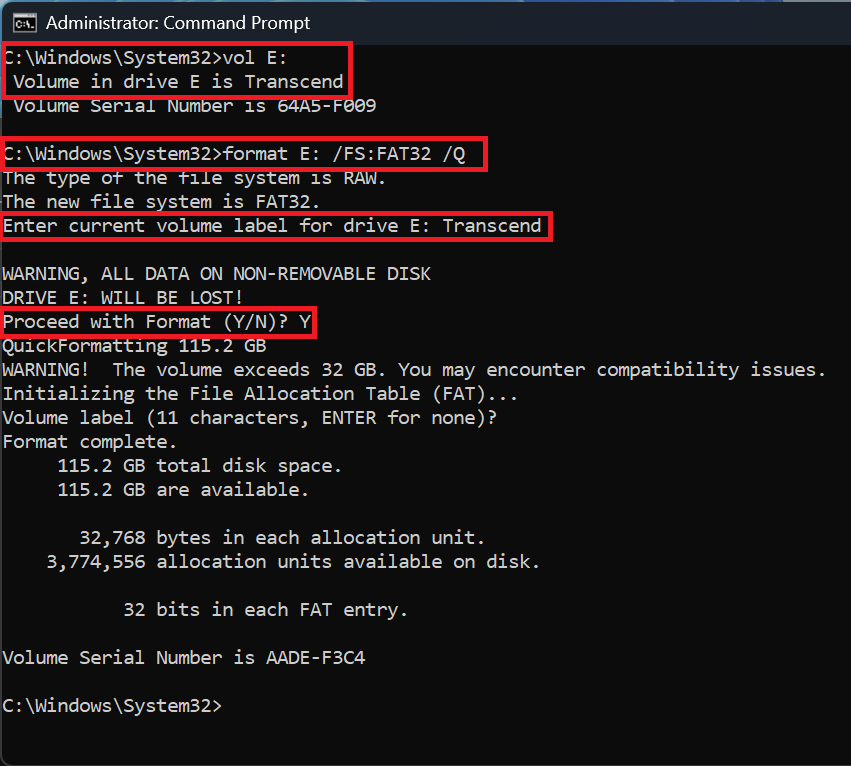
A: Follow the steps below to format the USB drive to FAT32:
- Run CMD as an administrator.
- Enter “vol E:” and replace E: with the drive letter you want to use.
- Enter “format E: /FS:FAT32 /Q”.
- Copy and enter the drive name.
- Enter "Y" to start formating.
- Wait for the process finishes.
Q: Why does the system automatically restart after I select the USB flash drive as the boot device?
A: This is normal behavior after the recovery process is completed and the system is ready to apply the changes. After you select the USB flash drive from the F11 boot menu, the recovery tool will run automatically in the background and restart the computer once the recovery process is complete.
Related Reading
[Product Information] Windows Secure Boot Certificate Update